Showing posts with label Windows Tips. Show all posts

Quick 8.3 filename conversion

Quick 8.3 filename conversion

   It has been sometime since I have posted some Windows Tips at this blog. The other day, I was tinkering around with a Windows 95 Virtual Machine, in order to try and install/play a CD copy of Megaman X I found at Goodwill two years ago. Unfortunately, the video game installer and the game itself on the CD were MS-DOS based, and would only accept 8.3 filenames for the installation directory ;_;. Whatever shall we do?!

   As I found in a MSDN forum, you could create a VB script, and then drag n' drop a file from another window on it, or simply cut/paste the original path directory in the script's pop box. Just open up Notepad, paste the following script code, save as .vbs, and chug away!

Set fso=CreateObject("Scripting.FileSystemObject")

' Is object a file or folder?
If fso.FolderExists(WScript.Arguments(0)) Then
'It's a folder
Set objFolder = fso.GetFolder(WScript.Arguments(0))
rtrn = InputBox("Here's your short path:", "SHORT PATH", objFolder.ShortPath)
End If

If fso.FileExists(WScript.Arguments(0)) Then
'It's a file
Set objFile = fso.GetFile(WScript.Arguments(0))
rtrn = InputBox("Here's your short path:", "SHORT PATH", objFile.ShortPath)
End If 

Have fun! (Now to get back and kick some robot butt!)


The ALT method of entering UNICODE characters

Author's Note: The following article uses Microsoft Word 2003, the Windows 7 version of Calc.exe, and the Windows 7 version of Character Map.

   Picture it. You are typing a very technical, mathematics Word document for a college paper, using the standard ASCII characters which are readily available on your standard keyboard. But wait! What you just typed required an extended IBM ASCII character, say, the greek lowercase letter, θ, which obviously is not on your keyboard. Oh, great! What to do now?


    At this point, the user will probably, with much effort, drag his mouse to Insert>Symbol, and then hunt through the character map matrix containing the entire set of 3,000+ UNICODE characters. After inserting the character into the document, he will probably copy and paste the new character for all of the future times he will need it in the document. Either way, constantly going into the Symbol dialog box or constantly copying and pasting the special characters that he needs will waste precious time. Is there is a more productive, efficient way for directly entering any ASCII or UNICODE character quickly?


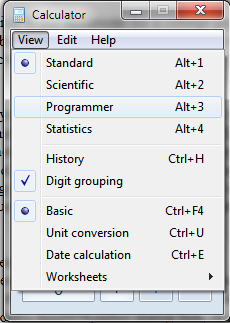
   Yes, there is a more productive, efficient way for entering special characters, using what I call the <ALT>+Dec method! The <ALT>+Dec method of entering special characters involves having the Num Lock key off, holding down the <ALT> key, and then pressing a 4-digit decimal code in the number pad for the appropriate character. In either Word's Insert>Symbol dialog box, or in the global Character Map Windows application, the user can view the unicode characters available for the user's specified font. In the status bar of either the stand-alone application or Word's Symbol dialog box, a 4-digit $hexadecimal value will be displayed. Due to the <ALT>+Dec method requiring decimal inputs, the user will need to convert the $Hexadecimal value into decimal. The quickest way to do this is to open up the Windows' Calculator app, set the calculator type to "Programmer", enter the hexadecimal value in "Hex" mode, and then switch to "Dec" mode, in order to convert the value. Lastly, press <ALT>+4-digit decimal value in order to insert the special character!


   What is unique about the <ALT> method of character input is that it is a global Windows feature. This feature should work in most applications that can utilize standard text input methods; however, whether or not the application will accept the special characters will vary. (For example, notepad does not like higher UNICODE characters.) By the user memorizing the decimal codes of the common special characters that he uses, the <ALT> method will save him time in typing technical documents. Also, if you want to quickly find the UNICODE hexadecimal equivalent of a text character within Word only, you can press <ALT>+X, in order to reverse the character into a hex string :).

How to copy file paths

       The Windows Explorer application built into Windows 7 is a very powerful, file managing tool. With the ability to easily copy, move, edit, and manage thousands of file, this program is an essential component of all of the Windows OSes. Sometimes, the user may need to copy the file paths and names of a list of files. How does one do this easily?

How to copy file paths:

     One easy, but little known, way to do this is by shift clicking a list of files. The difference between ctrl clicking a list of files and shift clicking a list of files is that the user will have to individually click all of the files he wants to select. With shift-clicking, however, all of the files listed in between two files will be selected. After pressing ctrl, and then shift-clicking said file range, right click, and a a new context menu titled "Copy as path" will appear in the shortcut list. Click the context menu item, and then paste the clipboard contents into your favorite text editor! It's that simple!


Copyright EagleSoft Ltd. Powered by Blogger.